Browser-Only Content Workflow: A Complete Guide for Teams in 2026
Content teams waste hours switching between desktop applications. Writers install Microsoft Word, editors download image software, and operations staff juggle multiple tools just to manage markdown, HTML, text cleanup, and PDF exports. A browser-only workflow eliminates this friction. Every team member works in tabs, no installers needed, full collaboration support, instant access from any device. This comprehensive guide shows you exactly how to build, implement, and maintain a lightweight, professional-grade content workflow using only browser-based tools while maintaining editorial control and team efficiency.
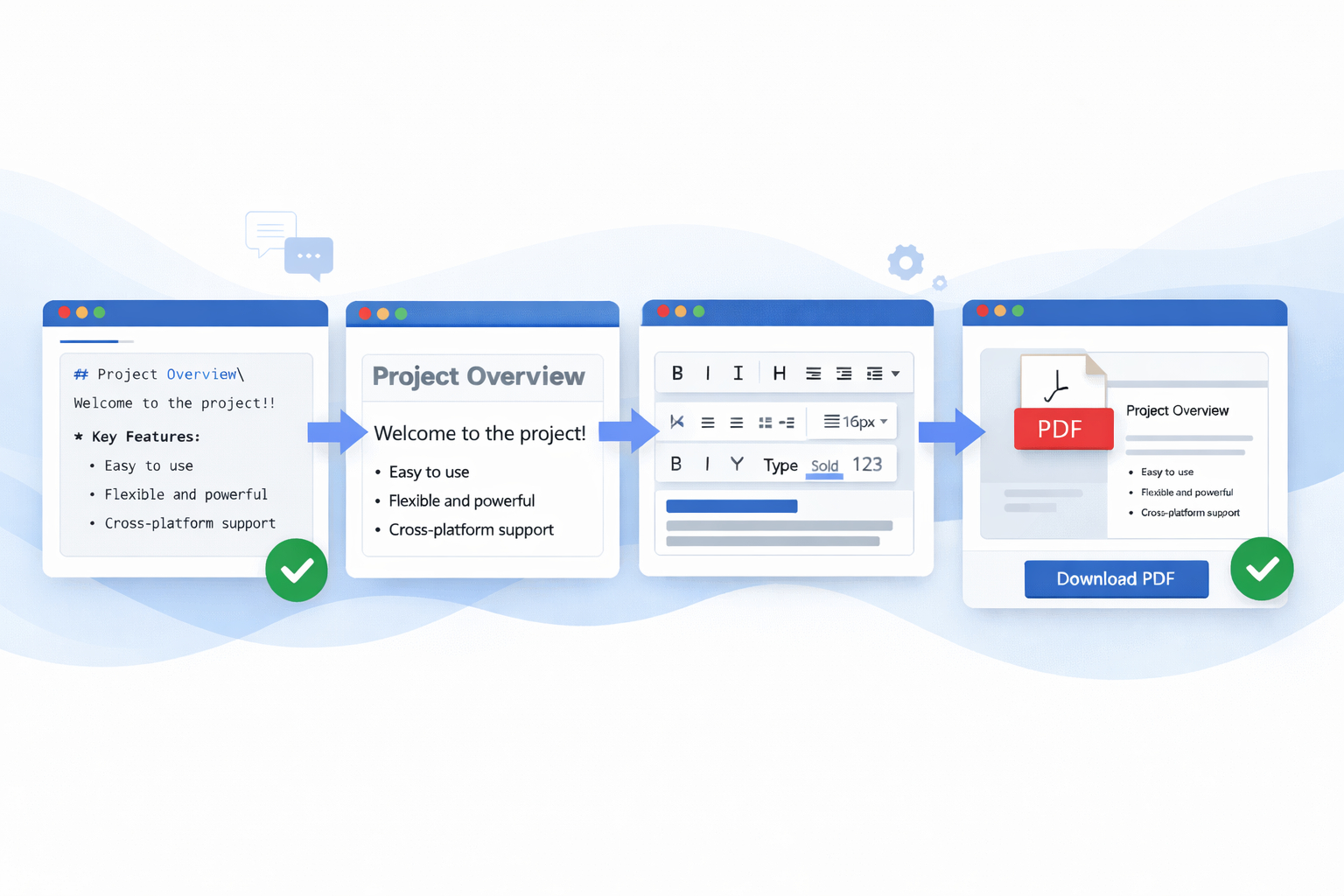
A modern browser-only workflow enables teams to draft, convert, edit, and publish content without heavy software installation.
Why Teams Choose Browser-Only Workflows
For decades, content teams accepted software complexity as inevitable. Word documents, design tools, conversion utilities, PDF generators—each required installation, licensing, and version management. This created several problems:
- Onboarding overhead: New team members need 2–3 days of software setup before writing their first document.
- Version conflicts: One person uses Word 2019, another uses 365, creating formatting inconsistencies and compatibility headaches.
- Device lock-in: A writer cannot work from a tablet, Chromebook, or public computer without "everything" installed.
- Cost accumulation: Microsoft Office licenses, Adobe Creative Suite, specialized converters—costs add up quickly across a team.
Browser-based tools solve this by putting all workflow logic on the web. Your cloud storage (Google Drive, OneDrive, Dropbox) becomes the source of truth. Format conversion, text cleanup, and PDF export happen instantly in the browser. A 5-person content team can collaborate without traditional software licensing—and still maintain professional output quality.
Measurable Benefits: Cost, Speed & Quality
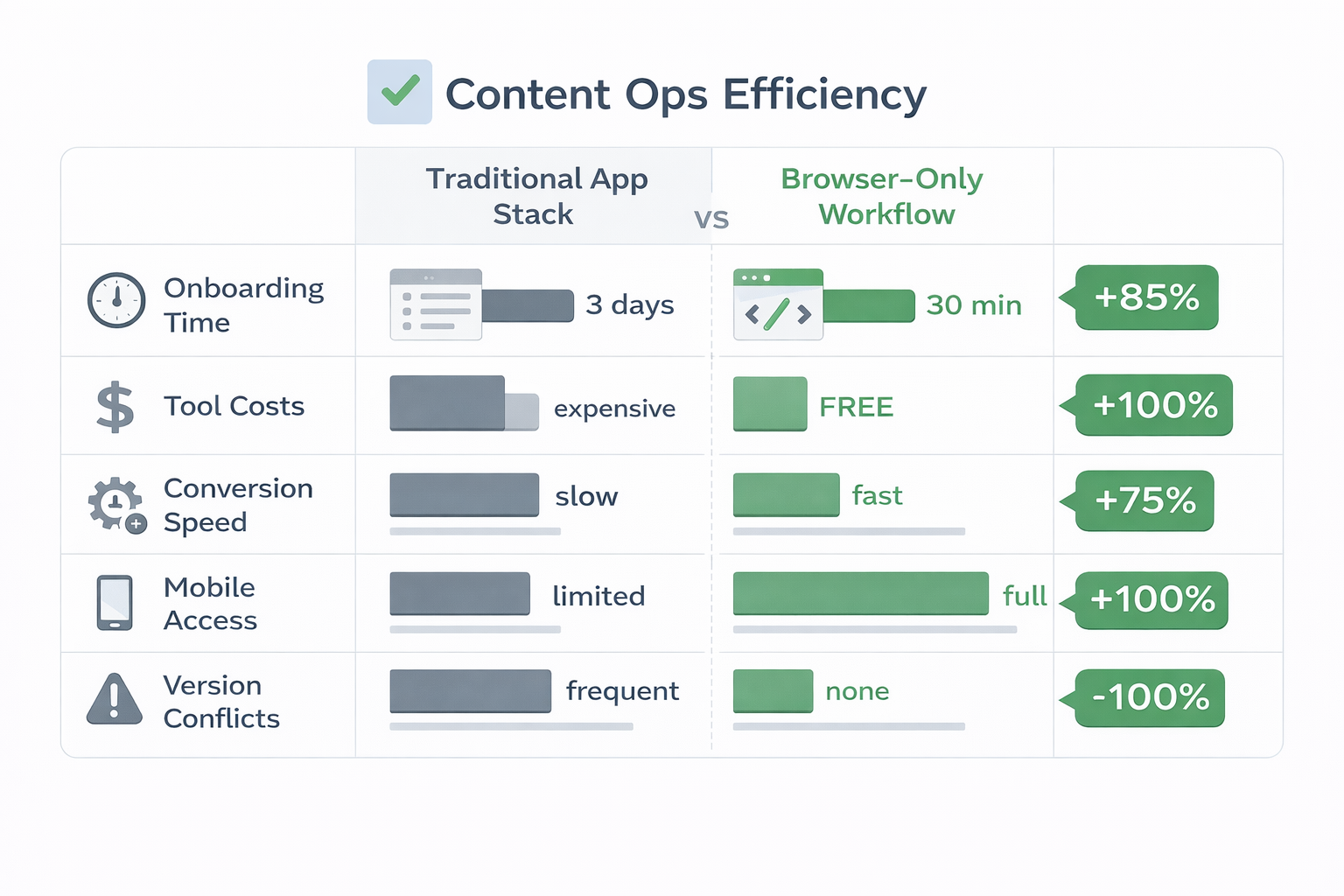
| Metric | Traditional App Stack | Browser-Only Workflow | Impact |
|---|---|---|---|
| Onboarding time | 3 days (software setup) | 30 minutes (bookmark storage & tools) | 90% faster |
| Tool costs per person/year | $2,400–$5,000 | $0-$300 (optional SaaS) | 85% savings |
| Format conversion speed | 5–10 minutes (install + learn) | 30 seconds (open tool, convert) | ~16x faster |
| Mobile / remote access | Limited (needs full laptop) | Full (any device, any OS) | 100% flexibility |
| Version conflicts | Frequent (app versions differ) | None (web tools auto-update) | Eliminates QA issues |
The Complete Publishing Workflow: From Draft to Distribution
Most content teams follow a cycle. Our browser-only approach clips that cycle down to 3–4 steps instead of 7–8. Here's what it looks like in practice:
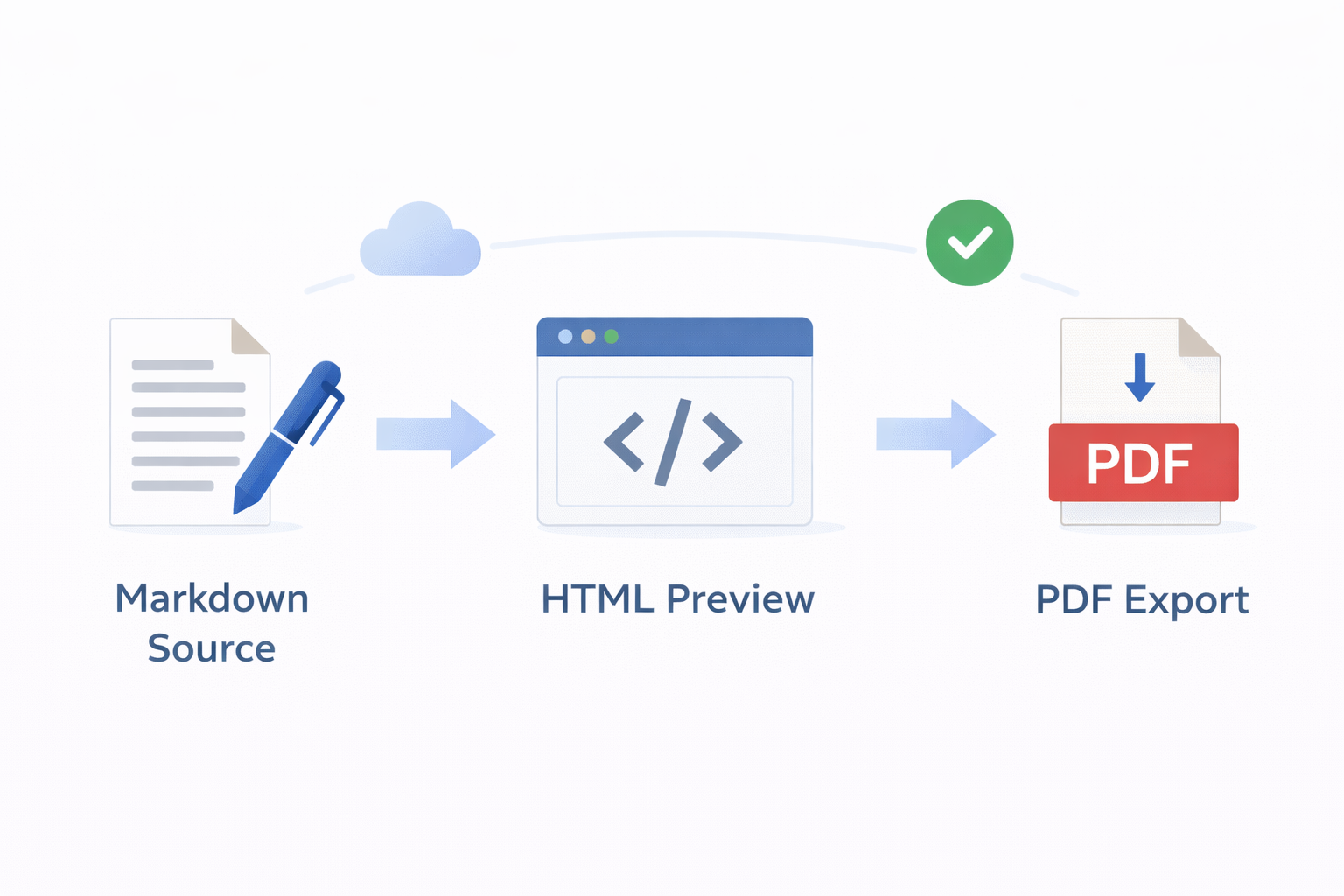
- Draft in Markdown — Writers create structured content in plain text using Markdown syntax. Source files live in cloud storage (Google Drive, GitHub, OneDrive). Markdown is purposefully simple to avoid formatting distractions during writing.
- Convert to HTML for Review — Editorial team uploads the Markdown file for instant HTML preview. This shows layout, links, heading hierarchy, and readability. Feedback happens in comments, not through file passing.
- Clean and Format — Use text cleanup tools to standardize spacing, case, whitespace, and punctuation. Find-replace handles typos across multiple files simultaneously.
- Export for Distribution — Generate PDFs for stakeholder review, email delivery, or archival. For web publication, push HTML directly to content management systems (CMS) or static site generators.
✓ Naming Convention That Saves Time
Use: YYYY-MM-DD_document-slug_draft-v1.md | Example: 2026-03-15_content-workflow-guide_draft-v2.md
This naming pattern makes version tracking automatic in cloud storage. Editors instantly see which version is latest and when it was last modified.
Essential Tool Categories for Content Teams
No single tool does everything. Instead, build a "stack" by combining lightweight, focused tools. Here are the key categories:
1. Markdown ↔ HTML Conversion
The backbone of browser-only workflows. Writers draft in Markdown, editors review as HTML. Tools should be bidirectional (Markdown → HTML AND HTML → Markdown for repurposing).
- OnlineConvert Markdown to HTML: Instant conversion, live preview, downloadable output.
- OnlineConvert HTML to Markdown: Reverse conversion for when you inherit older HTML content.
2. Text Cleanup & Formatting
Before publishing, text needs standardization. Inconsistent line breaks, trailing spaces, mixed case—these all degrade professionalism and SEO.
- Text Formatter: Convert case (UPPERCASE, lowercase, Title Case), remove extra spacing, normalize line endings.
- Find and Replace: Bulk updates across content (e.g., replace "website" → "web presence" across 50 articles).
- Word Counter: Validates minimum word count, ensures SEO targets are met.
3. Data Structure Conversion (CSV ↔ JSON)
When content includes structured data (product lists, pricing tables, FAQ lists), you'll need to move between CSV (spreadsheet) and JSON (programmatic) formats.
- CSV to JSON: For publishing structured content to APIs or dynamic pages.
- JSON to CSV: For importing API data back into spreadsheets for editing.
4. PDF Export
Some stakeholders (clients, executives, archival) prefer PDF over HTML. Browser tools generate PDFs instantly from text or HTML input.
- Text to PDF: Simple plaintext → PDF (useful for reports, summaries, statements).
Markdown Draft in cloud storage. Focus on content structure, not formatting.
Convert to HTML. Visual proof-read for layout, links, headers. Leave comments inline.
Text formatting, find-replace corrections, word count validation.
Generate PDF (for approval) or publish HTML (for web/CMS).
Step-by-Step Implementation Guide
Step 1: Set Up Cloud Storage as Your Source of Truth
Create a Google Drive or OneDrive folder named "Content Master." Sub-folders by content type (blog posts, whitepapers, guides, social copy). All Markdown source files live here. This becomes your version control system.
Folder structure example:
Step 2: Create a Browser Toolbar with Tool Bookmarks
Bookmark your essential tools in a browser folder called "Content Workflow." This makes switching between tools instant—no searching, no loading any dashboards. Just click the bookmark, paste your content, convert/format, download.
Suggested bookmark order: Markdown to HTML → Text Formatter → Find & Replace → Text to PDF
Step 3: Train Team Roles
Different team roles interact with different tools. Standardize the workflow so everyone knows their responsibility:
- Writers: Compose in Markdown in Google Docs or text editor (using Markdown syntax). Save to "Content Master" folder. No formatting, no styling—just plain text structure.
- Editors: Download the Markdown file → Upload to Markdown-to-HTML converter → Review the rendered HTML → Return feedback to writer via comments.
- Operations: Final cleanup using Text Formatter and Find-Replace → Export to PDF for approval → Push HTML to CMS or static site generator.
Step 4: Automate Common Corrections
Create a "standard cleanup" checklist using Find-Replace. Every document before publication should run through the same replacements:
- "website" → "web presence" (branding consistency)
- " " (double space) → " " (single space)
- "im" → "I'm" (contraction standardization)
- "dont" → "don't" (grammar standardization)
Save these replacement sets so new team members don't recreate the wheel.
Step 5: Establish Version Control Rules
Browser tools don't track versions like Git. Cloud storage naming convention ensures human-readable history. Adopt this rule: Never overwrite a file without incrementing the version number.
document_v1.md→ Editor feedback receiveddocument_v2.md→ Revisions applieddocument_final.md→ Approved for publication
Team Setup & Collaboration Patterns
Browser-only workflows work because they enforce async collaboration. Instead of "let me borrow the Word document," teams use cloud storage comments, shared spreadsheets for tracking, and browser tools for format shifting.
Real-World Example: A 5-Person Content Team
- Manager: Assigns topics in a shared Google Sheet. Uses Text Formatter to count words. Does final PDF export for stakeholder approval.
- 2× Writers: Draft Markdown in Google Docs (in Markdown syntax). Save to Content Master folder. Check comments from editor daily.
- Editor: Daily: Downloads new Markdown files → Converts to HTML → Proofs for grammar, links, headings → Posts comments in Google Drive. Returns final HTML to one of the writers for CMS upload.
- Operations: Weekly: Runs all published content through Find-Replace cleanup (standardizes inconsistencies). Generates PDF exports for compliance/archival.
Communication Overhead Comparison
| Traditional (Email + Attachments) | Browser-Only (Cloud + Tools) |
|---|---|
| "Here's my draft, review and send back." (email ping) | Document auto-syncs to shared folder. Editor notified via cloud storage. Comments inline in the cloud doc. |
| "I attached v2, here are the edits." (another email) | Writer uploads 2026-03-15_draft_v2.md. All versions visible in folder history. No emails. |
| "Can you convert this to HTML for me?" (request) | Writer self-serves: Markdown to HTML converter, instant output, no wait. |
| "Can you PDF this for the client?" (request) | Any team member: Text to PDF tool, download, send. No bottleneck. |
Best Practices & Common Mistakes to Avoid
✓ Best Practice: Use Cloud Storage as Versioning
Google Drive, OneDrive, and Dropbox all version history automatically. Instead of "final draft (2) copy.md," use date-based naming. Cloud storage then becomes your version control without Git complexity.
✗ Mistake: Uploading to Random Online Tools Without Authentication
Avoid free, untrustworthy converters. Sensitive content (employee handbooks, legal documents, unpublished business plans) should only be converted using reputable, secure tools. Use established platforms like OnlineConvert that use HTTPS and don't log your content.
✓ Best Practice: Standardize Output Format Before Team Collaboration
If your CMS expects specific HTML structure, test one article in full workflow first. Make sure each team member uses the same converter settings.
✗ Mistake: Treating Cloud Comments as Version Control
Google Drive comments are for feedback, not for tracking what changed. Always create a new file version (v2, v3) so you have lineage. Comments disappear or become orphaned; file versions are permanent.
✓ Best Practice: Create a Team Playbook Document
Write a 1-page markdown guide: "How We Publish Workflow." Include: naming conventions, folder structure, tool links, cleanup checklist, and approval sign-off. New hires can onboard in 30 minutes instead of 3 days.
✗ Mistake: Assuming Everyone Knows Markdown
Markdown is simple but non-obvious. Host a 15-minute team tutorial: "Markdown Basics for Writers." Cover headings (#, ##, ###), bold (**text**), lists, links, and images. Proficiency improves output quality.
✓ Best Practice: Schedule Weekly Cleanup Runs
Dedicate 30 minutes each Friday afternoon. One person runs all published content from the week through Find-Replace → Text Formatter → quality review. Prevents accumulation of formatting debt.
✗ Mistake: Publishing Without a Formatting Checklist
Use the same checklist for every article. Example: "Line breaks standardized? Spacing cleaned? Headings hierarchical? Links functional? Word count within target? PDF export successful?" Checklist prevents re-work and regressions.
Frequently Asked Questions
A: Absolutely. If your team is technical, GitHub is superior for version history and collaboration. Commit Markdown files, create branches for draft → review → final. GitHub integrates with static site generators (Jekyll, Hugo) for instant publishing. Less technical teams prefer Google Drive because there's no command line.
A: Convert using the browser tool, then paste HTML into your CMS. Most modern CMSs (WordPress, Contentful, Strapi) accept raw HTML input. If yours is very restrictive, test the workflow with your admin before rolling out to the team.
A: Most reputable tools (OnlineConvert, Pandoc, Convertkit) don't log or store your content. Use tools with transparent privacy policies and HTTPS connection. For highly sensitive documents (legal, financial), run converters on your own server or use desktop tools as a compromise.
A: Store images in cloud storage alongside Markdown files. Reference them by URL or file path in your Markdown. When converting to HTML or PDF, images are embedded automatically if URLs are accessible. For PDF export, ensure image paths resolve correctly in the tool.
A: Most modern CMSs accept HTML input. Some tools offer direct CMS integrations (Zapier, Make, API connectors). For simpler workflows, copy-paste HTML from the converter into your CMS editor. No integration required.
A: No. SEO depends on the final HTML quality, not the tools used to create it. Whether you wrote in Word, Markdown, or a proprietary editor—if the final published HTML is clean, semantic, and fast-loading, search engines rank it the same. Browser tools often produce cleaner HTML than desktop apps.
A: For simultaneous editing, use Google Docs in Markdown mode. For sequential workflow (writer → editor → ops), download/upload files with versioning. Google Docs handles simultaneous editing better; GitHub handles sequential + version history better. Choose based on your team's rhythm.
A: Minimal. If your team knows Google Docs and email, they can learn browser tools in 2–3 hours. Markdown takes 15 minutes (basics). Tool usage is 5 clicks max per conversion. Biggest adjustment is the mindset shift: "tools are free and always available, not something you install."
Ready to Build Your Browser-Only Workflow?
Start small: pick one content type (blog posts, internal memos, quarterly reports) and run it through the workflow for a month. Measure how much time you save on conversions, tool management, and onboarding. Once your team sees the efficiency gains, scaling to all content types is straightforward.